
Skool Video Downloader
Keep Skool classroom lessons and replays after a cohort closes, whether the creator used Skool's own player, Loom, Vimeo, YouTube or Wistia.
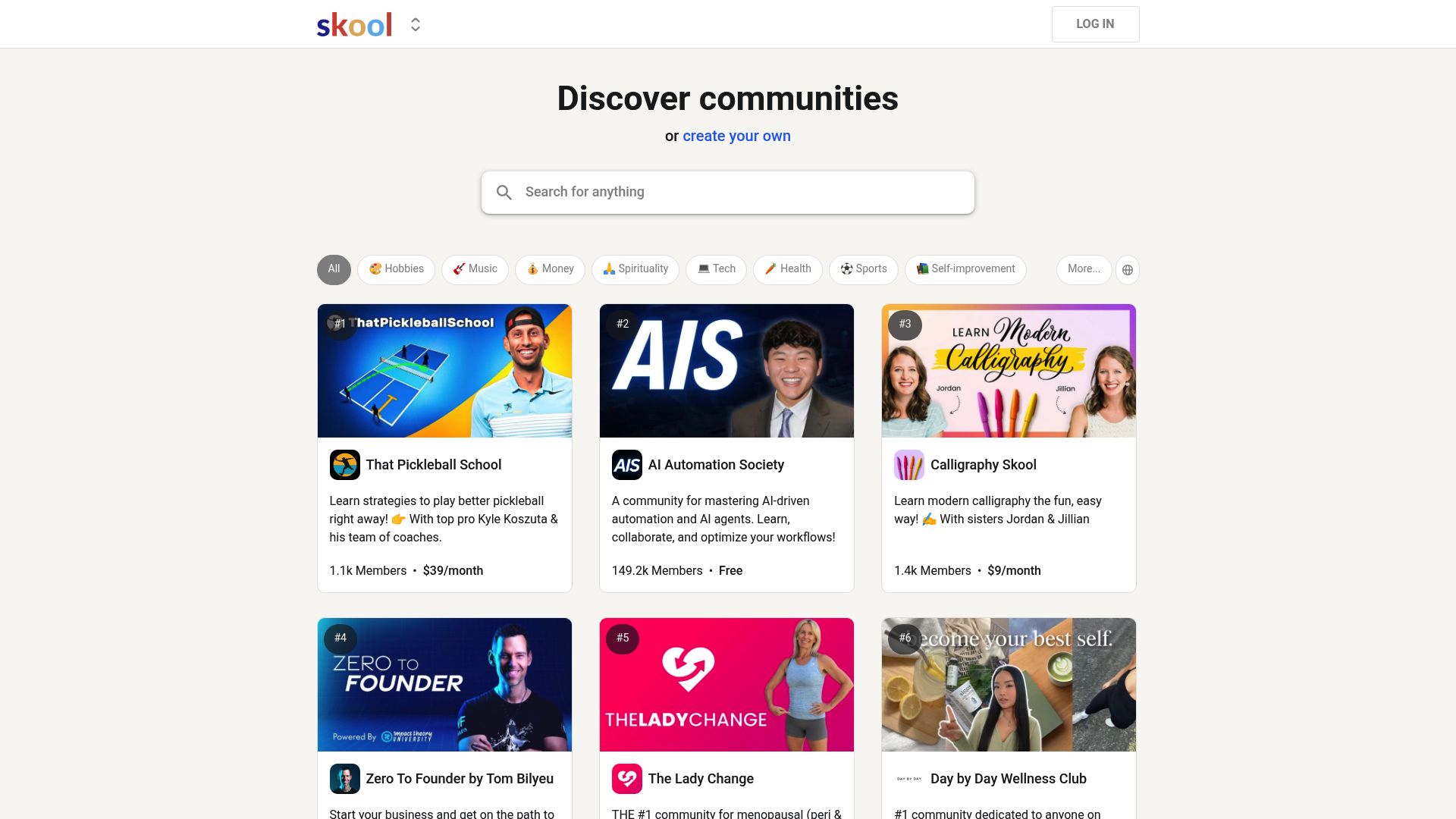
Cohorts close, access lapses
When a Skool cohort wraps up or a membership runs out, the lessons, replays and community videos you were relying on can disappear with no warning. Skool Video Downloader lets you keep them. Open a classroom lesson, community post or course module, start the video, click the extension icon, choose a quality, and the whole video is saved to your computer as an MP4.
You do not need to work out where the creator hosted a video. One extension covers every player commonly used inside Skool, so there is no separate tool to install for each one.
Players it recognises
| Source | How it is handled |
|---|---|
| Skool native (Mux) | Video data is read straight from the page props of Skool's Next.js pages |
| Loom | Passed to the Loom handler when an embed is found |
| Vimeo | Passed to the Vimeo handler |
| YouTube | Passed to the YouTube handler |
| Wistia | Passed to the Wistia handler |
Supported page types are classroom lessons, video posts in a community, course modules and About pages. Member-only and private community content works through the Skool login you already have.
The download itself
- A quality selector lists every resolution the platform offers before you commit.
- HLS streams are converted into ordinary MP4 files inside the browser, with no outside tools.
- The queue handles as many as 3 videos concurrently.
- A download manager panel shows a progress bar, the speed and a cancel control for each video.
- Finished MP4s save straight to your computer, with no save-as dialog in the way.
- Processing stays in your browser, so your videos never travel through an outside server.
Getting going
After adding it to Chrome, Edge, Firefox, Brave or Opera, sign in to your Skool community the normal way and activate the extension through email sign-in with a one-time password (no passwords are stored). Playback is the trigger: once the stream starts on a lesson, post or module, the extension identifies which of the supported players is serving it. From there it is the toolbar icon, a resolution, and the MP4 is saved.
Compatibility and limits
Desktop browsers: Chrome, Edge, Firefox, Brave, Opera, Whale, Yandex and other Chromium-based browsers, on Windows, macOS and Linux. Safari is not supported, and nor are mobile browsers. Region: Worldwide.
- DRM-protected videos cannot be saved.
- Live streams are out of scope; wait until the recording is posted.
- Press play first, otherwise there is no stream to detect.
- It only saves lessons your own account is already allowed to watch. Paywalls and permissions are never bypassed.
- The quality you can get depends on the source platform and on what the creator uploaded.
Permissions explained
downloads: places each completed MP4 in your downloads folder and keeps the per-video progress readout correct.storage: keeps activation status, the download manager's state and your preferences locally, so everything is ready next session.activeTab: looks at the current tab for players and embeds so the extension can tell which platform and source a video comes from.tabs: lets the download manager follow active downloads when you switch tabs and restore its state when you come back.scripting: adds the detectors for each supported host to the page, which read manifests, the available quality variants and page data for Skool, Loom, Vimeo, YouTube and Wistia videos.offscreen: runs the HLS-to-MP4 conversion in a background offscreen document, so your lesson tab stays responsive.
FAQ
What are the clicks for saving a Skool lesson?
Open the classroom, community post or course page with the video and press play. Click the toolbar icon, choose a quality and hit Download. The file is saved as MP4.
Which video hosts inside Skool are covered?
Skool's own Mux-based player plus Loom, Vimeo, YouTube and Wistia, which are the hosts commonly used across Skool communities and courses.
Can I save from a private community or a paid cohort I belong to?
Yes. Any Skool community or course you can open in your browser works; if the video plays for you, it can be downloaded.
Is it limited to one video at a time?
No. The queue processes as many as 3 videos simultaneously, and each has its own progress bar and speed readout.
The extension says it cannot find a video. What should I check?
Press play first, because detection only starts once the stream does. For a video embedded from another platform, wait for the embed to load fully. If it still fails, reload the page.
Can I install it on Whale, Yandex or Safari?
Whale and Yandex work, alongside Chrome, Edge, Firefox, Brave and Opera, on Windows, macOS or Linux desktops. Safari is the exception and is not supported.
Are HLS lessons saved as HLS, or converted?
Converted. HLS streams are turned into MP4 automatically inside your browser, and every saved lesson is a standard MP4 that plays on any device or media player.
Are my course videos routed through a third-party server during conversion?
All video processing happens in your browser and no video data goes to external servers. Sign-in uses a one-time code, so no passwords are stored.
Is this legal?
DISCLAIMER: We are not attorneys and do not offer legal advice. Laws vary by country and platform. For any legal question please consult a qualified legal professional.
We give you full control over download speeds because we believe users should decide how they use their software.
That said, here are a few widely accepted best practices for safe, responsible downloading:
-
Only download content you created, own, or have explicit permission from the rights holder to access.
-
Protect your personal data by respecting platform rules and rate limits with reasonable download speeds to avoid automated abuse systems putting your account at risk.
-
Protect your privacy by using a reputable VPN for IP protection before initiating downloads — this is the VPN we recommend & use.
Links
Related Entries

Keep Circle lessons, coaching replays and member posts as MP4 files, whether the video was uploaded to Circle or embedded from Loom, Vimeo or YouTube.

Keep ClientClub portal lessons and coaching replays as MP4 files on your computer, whether the lesson plays through Loom, Vimeo, Wistia or YouTube.
Turn Coursera lectures from your courses, specializations and guided projects into MP4 files before a course retires or your membership runs out.